
Checked August 11, 2026 · verify the official settings guide
Palworld Dedicated Server Settings: Config File, World Rates and Safe Changes
Use this guide to locate PalWorldSettings.ini, decide which server and world options to change first, and verify each edit with a controlled restart and test client.
For a Windows dedicated server, stop the server, make a complete copy of the world and configuration, and edit the active PalWorldSettings.ini file rather than the default template. The official workflow uses the default settings file as a starting point, then loads the copied settings from the server's saved configuration directory. Change one group of values at a time, restart the server, join with one test client, save, disconnect and reconnect. If the change does not appear, check the path, the syntax and whether the host panel overwrote the file before trying another setting.
Where Palworld dedicated server settings live
Palworld dedicated server settings are loaded from an active configuration file, not from every file with a similar name. For a Windows server, the path commonly ends in Pal/Saved/Config/WindowsServer/PalWorldSettings.ini. A SteamCMD or self-hosted installation may have a different parent directory, and a hosting provider may expose the same file through a web panel or a managed file browser. The parent path can move; the file role is what matters.
The official server guide separates the default settings template from the saved configuration that the running server reads. If the saved configuration directory does not exist yet, start the server once, shut it down normally, and then inspect the generated folders. Do not create a second file in a guessed directory and assume the server will discover it. When a host panel offers a setting editor, compare its saved output with the provider's current instructions instead of editing a local copy that the panel will replace.
Before editing, record the server installation path, the provider or SteamCMD layout, the current game build, and the last successful restart. That short record makes a path mistake easier to spot than repeated trial-and-error changes.
- Active file: the PalWorldSettings.ini inside the server's saved configuration directory.
- Default template: a starting point for the OptionSettings line, not the live file to edit repeatedly.
- Hosting panel: follow the host's save/apply/restart process and keep an exported backup when available.
Copy the default settings before editing the active file
The configuration is easy to damage because Palworld stores many options together in an OptionSettings entry. A missing comma, an unmatched quote or a value copied from a different game build can cause the server to ignore the line or fail during startup. Open the current default settings file and copy the documented option line into the active PalWorldSettings.ini, then change only the values you understand. Preserve the original line in a separate text file before making your first edit.
Do not turn the file into a collection of unrelated INI sections just because the filename ends in .ini. Palworld's server configuration format has its own structure. Keep the wrapper, commas, quotation marks and boolean spelling intact. If the official guide gives a complete example, use that example as a syntax reference and update it deliberately rather than pasting several snippets together. A text editor with visible line numbers and UTF-8 support is enough; a random server manager is not required.
After saving, reopen the file and confirm that the changed value appears exactly once in the active configuration. Keep a dated copy outside the server directory. It is the fastest way to compare a working file with a failed edit and it prevents an automatic panel backup from becoming your only recovery point.
- Back up the whole server configuration and world before touching OptionSettings.
- Change one logical group at a time, such as access, player limits or world rates.
- Keep a clean copy of the last known-good file outside the live server folder.
Which server settings are worth changing first
Start with access and identity values that are easy to verify: server name, description, password, admin password, public visibility and the port or address supplied by the host. These settings affect how players find and join the world, but they should not be changed at the same time as a large balance overhaul. If a server disappears after an access edit, you have a much smaller troubleshooting surface than if every world rate changed too.
Player limits and guild limits deserve a second pass. A higher maximum player count may increase memory pressure or expose hosting limits even when the configuration accepts the number. A password change also changes the join test: record the new value privately, connect one test client, then verify that an existing player can reconnect. Do not publish an admin password or place private credentials in a screenshot, issue report or public mod description.
PvP, death-penalty and client-side permissions are policy choices rather than universal performance improvements. Explain the rule to the group before enabling it, and write down the old value so a rollback is unambiguous. If a mod or host panel owns the same behavior, decide which system is authoritative before changing both.
- Test name, visibility, password, ports and player limits before balance values.
- Treat admin credentials and private server addresses as secrets.
- Do not let a mod, host panel and PalworldSettings.ini compete for the same rule.
Change world and progression rates with a baseline
World settings can include experience, capture chance, resource collection, item drops, breeding or egg hatching time, building damage, durability and death penalties. These values change the pace and sometimes the difficulty of an existing world. A rate that feels reasonable on a new solo test world may make a long-running multiplayer save unstable or remove the reason for a progression system. Treat the word rate as a gameplay change, not as a harmless quality-of-life toggle.
Write the old and new values in a small change log. Then test the exact action the setting should affect: collect the resource, capture a test Pal, complete a craft, place a structure, hatch an egg or die in a disposable area. Save, stop the server and start it again before judging the result. Some settings are only obvious after a complete cycle, and some are influenced by an active mod, a player bonus or a feature that was already in progress.
Avoid changing several multipliers because one result looked slow. If a resource is missing, first check the mod list, server log, world difficulty and the item or recipe itself. A large rate increase can hide a broken dependency while making later comparison impossible. A controlled baseline is more useful than a dramatic number that nobody can reproduce.
- Record the baseline before changing experience, capture, collection or hatching values.
- Test one representative in-game action, then save, restart and repeat it.
- Keep balance changes separate from loader, mod and game updates.
Why Palworld server settings do not change after editing
The most common cause is editing the default template or the wrong server instance. Check the active PalWorldSettings.ini path, the service or container that starts the server, and the timestamp after the next shutdown. A host panel may generate the file from its own form, while a local editor changes a copy that is never loaded. If the file timestamp jumps backward, the panel or startup script is probably restoring an older configuration.
Syntax is the second checkpoint. Look for a missing comma, a quote that was replaced by a typographic character, a boolean changed to a localized word, or an option name copied from an older guide. Restore the clean file, apply one documented change and read the server log after a controlled restart. Do not keep stacking edits on a file that already failed to parse.
Finally, check whether the setting is the right layer. A server option cannot override a mod's hard-coded behavior, a client-only visual setting or a platform restriction. If the server starts but one player sees a different result, compare the client build, mod side label and connection path before changing the global configuration again.
- Confirm the running service and the file path before changing syntax.
- Restore a clean copy after a parse failure instead of adding another fix.
- Separate server rules, client presentation and mod behavior when diagnosing.
Keep server settings separate from mods and multiplayer rules
A dedicated server can start with a configuration change and still fail when a mod or a client joins. Server settings control the world and host policy; a UE4SS loader, Pak package, LogicMods release, PalSchema project or standalone tool may add another dependency layer. Read the publisher's side label and requirements. The fact that a package is listed under server mods does not prove that every player can connect without a matching client setup.
When a change affects shared recipes, objects, Pals, inventory rules or world behavior, test the server and one matching client together. If the current configuration exposes a client-mod permission such as bAllowClientMod, treat it as a gate to verify—not as a blanket compatibility switch. A client permission cannot repair a wrong loader path, an outdated package or a save that already contains incompatible data.
For a maintenance window, stop the server, back up the world and settings, apply the smallest change, start the server, connect one test client and exercise the affected feature. Save, restart the server and reconnect. Only after that sequence passes should regular players return. Link to the dedicated server mods and multiplayer guides for package-side decisions rather than turning this settings page into a second mod catalog.
- Server configuration and mod compatibility are related but not interchangeable topics.
- Use the source page's client/server/Both label for every mod in the test set.
- A restart-and-reconnect test is stronger than a server process that merely stays online.
Keep a rollback path for updates and hosted servers
Before a game, loader or mod update, archive the world, player data, active settings file and the last working package list. Keep the archive outside the live server directory and name it with the date, world identity and purpose. A configuration backup alone cannot restore a world that changed while a server was running, and a world backup alone does not explain which settings made the previous session work.
If the new setup fails, stop changing values. Restore the last known-good configuration and world copy, start the server without adding another package, and verify a clean join. Then reintroduce one change at a time. Hosted services may keep automatic snapshots, but you still need to know which snapshot was restored, whether it includes configuration, and whether the provider's panel will regenerate the file on the next boot.
- Archive world, player data, settings and the working mod list together.
- Keep the previous setup until a full save, restart and reconnect cycle passes.
- Use official source instructions for current version changes; do not guess from an old screenshot.
Palworld server settings checklist
Use this matrix to decide what to test first. It is a planning aid, not a replacement for the current official option list or a host provider's documented path.
| Setting group | What it changes | Check before editing | Best first test |
|---|---|---|---|
| Access and identity | Name, description, password, visibility and address details | Host panel, port mapping and private credentials | One client joins and reconnects after restart |
| Player and guild limits | Maximum players or group size | Provider resources and the current world population | A small test group connects without lag or kicks |
| World progression | Experience, capture, collection, drops and hatching | Baseline values, active mods and an existing save | One representative action before and after a restart |
| Combat and survival | PvP, death penalty, damage and durability rules | Group policy, mod overrides and rollback record | A disposable area or test character |
| Mod and client policy | Whether clients or servers need matching changes | Publisher requirements and side labels | One matching client uses the affected feature |
A safe Palworld dedicated server settings workflow
Run the same checkpoints whenever you change a server setting. The goal is a repeatable result that can be rolled back, not simply a server process that launches once.
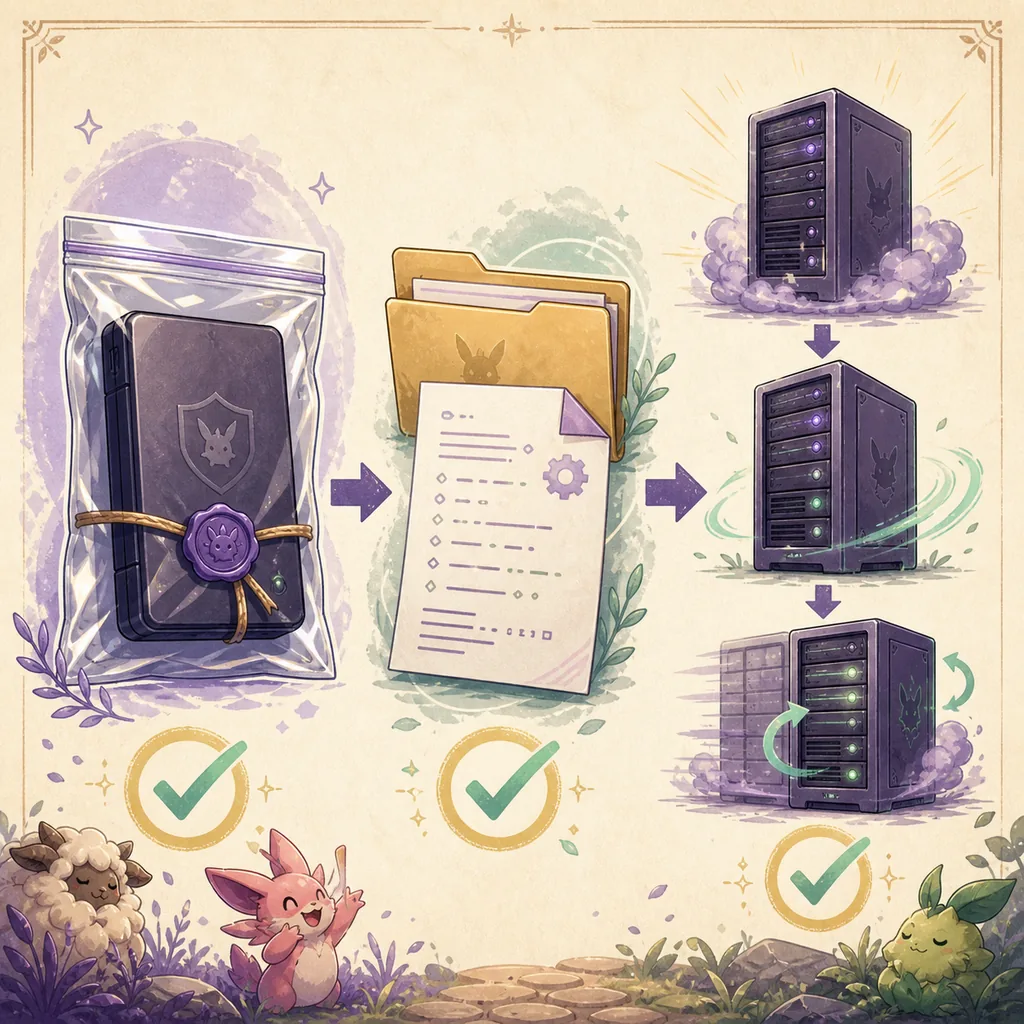
- Record the baselineWrite the game build, host layout, active settings path, current values and last successful restart.
- Stop every writerShut down the dedicated server normally and confirm the process or container has stopped before copying files.
- Archive the complete stateCopy the world, player data, active configuration and working mod list outside the live server directory.
- Edit one groupUse the current official option syntax, preserve commas and quotes, and change only the values needed for the test.
- Start and read the logRestart the server through its normal host path and check that the file was not overwritten or rejected.
- Test a disposable scenarioJoin with one matching client and perform the action affected by the setting; do not use the only important world as a test.
- Save, restart and reconnectKeep the change only after it survives a save, a clean server restart and a second client connection.
Verify multiplayer settings with one matching client
A multiplayer setting is not accepted just because the server remains online. Check the host, the joining client and the affected gameplay loop together, then keep the old configuration until the result survives a restart.
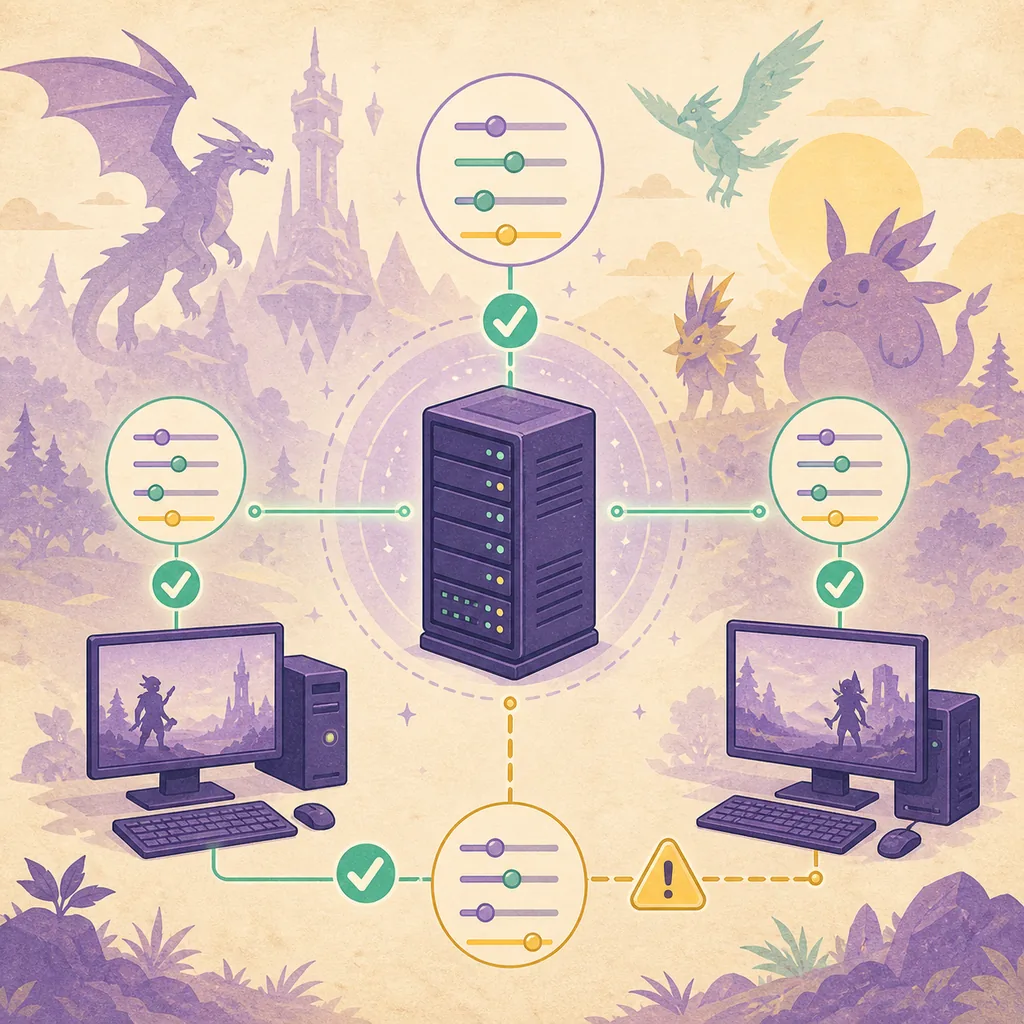
- Use the same game build and the source-listed mod side on the server and test client.
- Join once before the change so you have a baseline for latency, loading and the affected feature.
- Apply the setting, restart the server and connect again instead of relying on an already-open session.
- Test a shared action such as crafting, travel, capture, inventory or a world-rule interaction.
- Save, stop, restart and reconnect before reopening the server to the full group.
Palworld dedicated server settings FAQ
Why did editing DefaultPalWorldSettings.ini do nothing?
The default file is used as a starting template in the official workflow. The running server reads the active PalWorldSettings.ini in its saved configuration directory. Copy the documented option line into the active file, preserve the syntax and restart through the real host process.
Do I need to restart the Palworld dedicated server after changing settings?
Yes. Stop and restart the server through its normal process, then join with a test client. A live session can keep old values in memory, and a host panel may overwrite a local edit during the next boot.
Where is PalWorldSettings.ini on Windows?
A common dedicated-server layout ends with Pal/Saved/Config/WindowsServer/PalWorldSettings.ini, but SteamCMD and hosting providers can use a different parent directory. Confirm the active path in the current official or provider instructions and check which process starts the server.
Do all players need the same server settings?
Server-side world and access settings are controlled by the host, but mods may require matching client files. Check the mod publisher's Client, Server or Both label and test one matching client after a restart.
Why does my server start but the setting still looks unchanged?
Check the active file, the OptionSettings syntax, the server log, the host panel and whether the changed option affects an existing world. Restore the clean copy and test one value rather than stacking more edits.
How do I roll back a bad Palworld server setting?
Stop the server, move the failed configuration aside, restore the complete known-good configuration and world backup, then verify a clean join. Keep the failed file for comparison and do not mix files from different attempts.
Official references and verification notes
Server options, paths and platform behavior can change. Use these sources as the current boundary, then check the individual mod publisher and hosting provider for their own requirements.
- Palworld official dedicated server settings guide — Primary reference for the default settings template, active configuration and option syntax; checked August 11, 2026.
- Palworld official dedicated server guide — First-party context for server setup, commands and platform-specific behavior; checked August 11, 2026.
- Palworld official Steam page — First-party game and PC platform context; it is not a substitute for a mod publisher's requirements.
- Palworld Modding Docs server notes — Community context for server-side loaders; use the mod or loader publisher as the authority for exact files.