
Checked August 7, 2026 · verify the current release source
Palworld UE4SS Guide: Install, Paths, Fixes and Safe Removal
UE4SS is a loader used by some Palworld mods, not a universal replacement for Steam Workshop, Pak, LogicMods or PalSchema. This guide keeps the boundary clear: use the loader only when the mod publisher names UE4SS, install the matching files in the platform-specific binaries folder, test on a disposable world, and keep a rollback record beside your save backup.
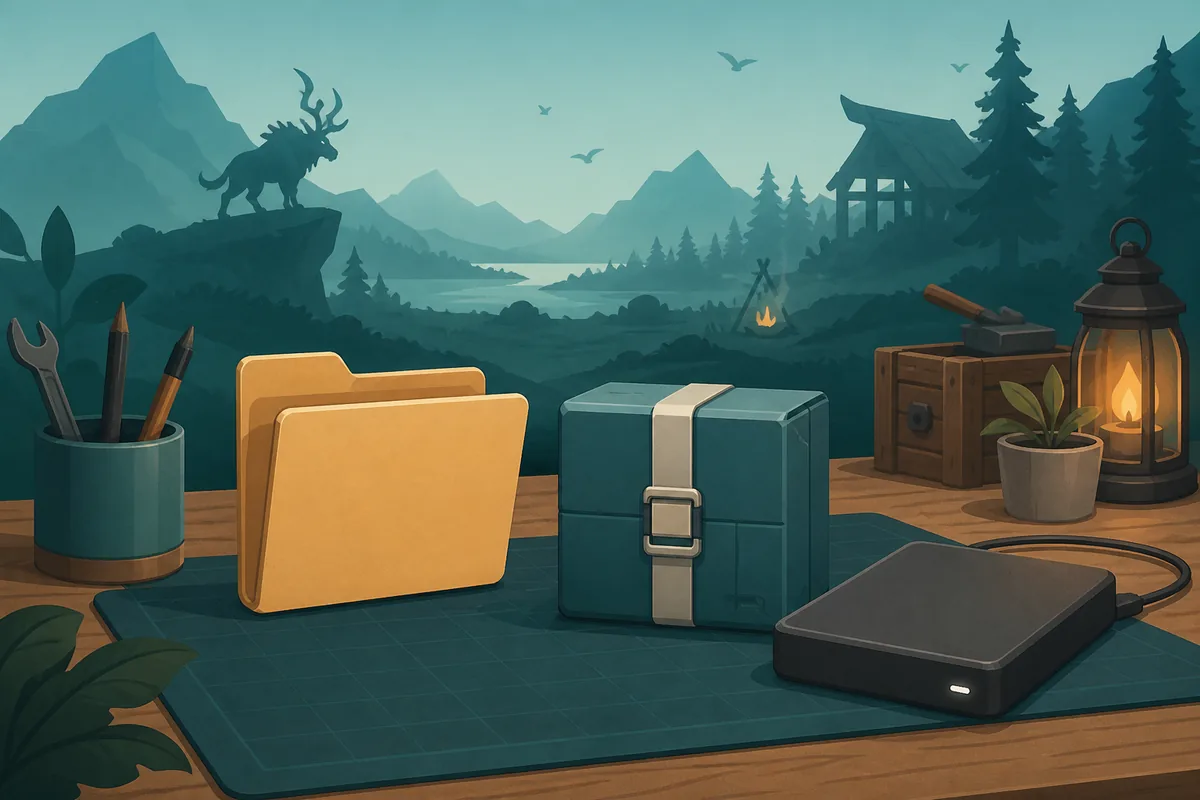
For a Windows PC, first open the current RE-UE4SS release page and the mod publisher's requirements. Back up the save, stop Palworld, use Win64 for the Steam installation or WinGDK for Windows Game Pass when the source explicitly supports it, copy only the named loader files, add one UE4SS mod, and test a save-and-reload cycle. If the game crashes, remove the last change and compare the loader, path and dependency versions before trying another archive.
What Palworld UE4SS is — and what it is not
Searches for Palworld UE4SS often mix three things: the loader itself, a specific UE4SS mod, and a download page for an experimental build. Treat them separately. UE4SS is a runtime loader that some Unreal Engine mods require. The mod's own page still decides which loader build, folder layout, dependency and Palworld version are supported.
That distinction prevents the most common mistake: copying every downloaded file into a folder named Mods. Steam Workshop subscriptions, Pak or LogicMods packages, PalSchema projects and standalone server tools can have completely different installation rules. If a mod page does not explicitly mention UE4SS, do not add the loader just because another Palworld mod uses it.
- Use the original loader release and the individual mod page as the source of truth.
- Keep the game version, loader build, mod version and platform in one short record.
- Treat a loader as a dependency, not as proof that every UE4SS mod is compatible.
Check the current UE4SS release before installing
On August 7, 2026, the RE-UE4SS GitHub release page I checked displayed a stable release entry and an experimental-latest entry. That is a source check, not a promise that either build is correct for every Palworld mod. Read the release notes, package contents and the mod author's requirements together; do not choose a loader by a random mirror, a re-uploaded DLL or a search snippet.
The page does not provide a verified permanent direct-file CTA because release assets, signatures and filenames can change. Open the release page, confirm the platform and build requested by the mod, and keep the source URL in your installation record. If the publisher names a different fork or loader revision, follow that instruction instead of mixing two loaders.
- Prefer the maintained release page over an unknown download mirror.
- Do not call a release safe or latest without checking the source on the day you install.
- If a mod requires an experimental build, keep that choice separate from stable packages.
Steam PC: use the Win64 binaries path
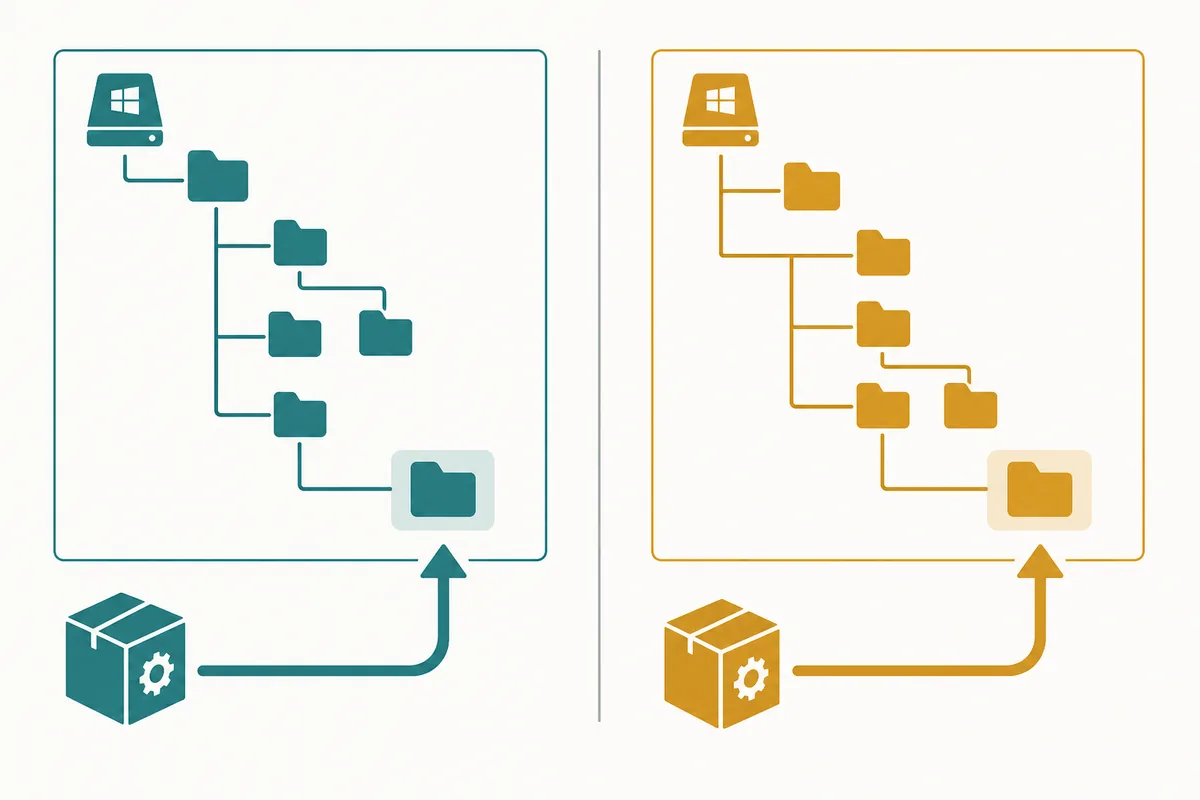
For a Steam installation, open Steam, right-click Palworld, choose Properties, Installed Files and Browse, then locate the Palworld binaries directory. The common UE4SS destination described in current community instructions is `Palworld\Pal\Binaries\Win64`. The exact archive structure still wins: if the loader package contains a folder tree, preserve it rather than flattening files into the game root.
Stop the game before copying anything and back up the world and player saves first. Copy only the files named by the release or mod page. A DLL left from an older manual setup can conflict with a Workshop loader, so do not keep two versions merely because both appear to be required by different videos.
- Use Win64 for the Steam PC path; do not substitute the Windows Game Pass path.
- Keep the original archive and record every file or folder that was added.
- Install one UE4SS mod and its declared dependencies before adding another.
Windows Game Pass and dedicated servers need a separate check
Windows Game Pass uses a different PC layout from Steam. Current Palworld modding guidance commonly points UE4SS users toward `Palworld\Content\Pal\Binaries\WinGDK` for the Game Pass build, but the source page for the loader and the specific mod must confirm that path. Never copy a Steam Win64 instruction literally into Game Pass and assume the loader will initialize.
Dedicated servers add a second question: does the host permit this loader and do connecting clients need matching files? A self-hosted Windows server may follow a server-specific UE4SS guide, while a rented host can restrict file uploads or use a different layout. Linux hosts often need a compatibility layer or a server-native alternative. If the host documentation is unclear, stop before changing the live world.
- Windows Game Pass is a PC path, not permission to install manual files on an Xbox console.
- For a server, verify host support, server-side requirements and the client/server side label.
- Test one matching client after a server restart before inviting the regular group.
A safe Palworld UE4SS installation workflow
The fastest-looking method is to copy a large archive and launch the game. The safer method takes a few more minutes but leaves evidence. First write the source URL, release name, game platform and loader choice. Then back up the save outside the game directory, stop the game or server, and install only the loader files named by the current release. Keep the package folder intact so removal is possible later.
After the loader alone reaches the menu or the server starts, add one UE4SS mod and its dependencies. Use a disposable world, exercise the changed feature, save, exit completely and reload. For multiplayer, join with one matching client and test the shared action after a server restart. If the baseline passes, record the exact working combination before adding the next mod.
- A successful launch is only a baseline; a save-and-reload test is stronger evidence.
- Do not combine a loader update, a game update and several mod updates in one diagnosis.
- Keep the working record outside the live game folder.
Fix crashes, missing mods and loader conflicts
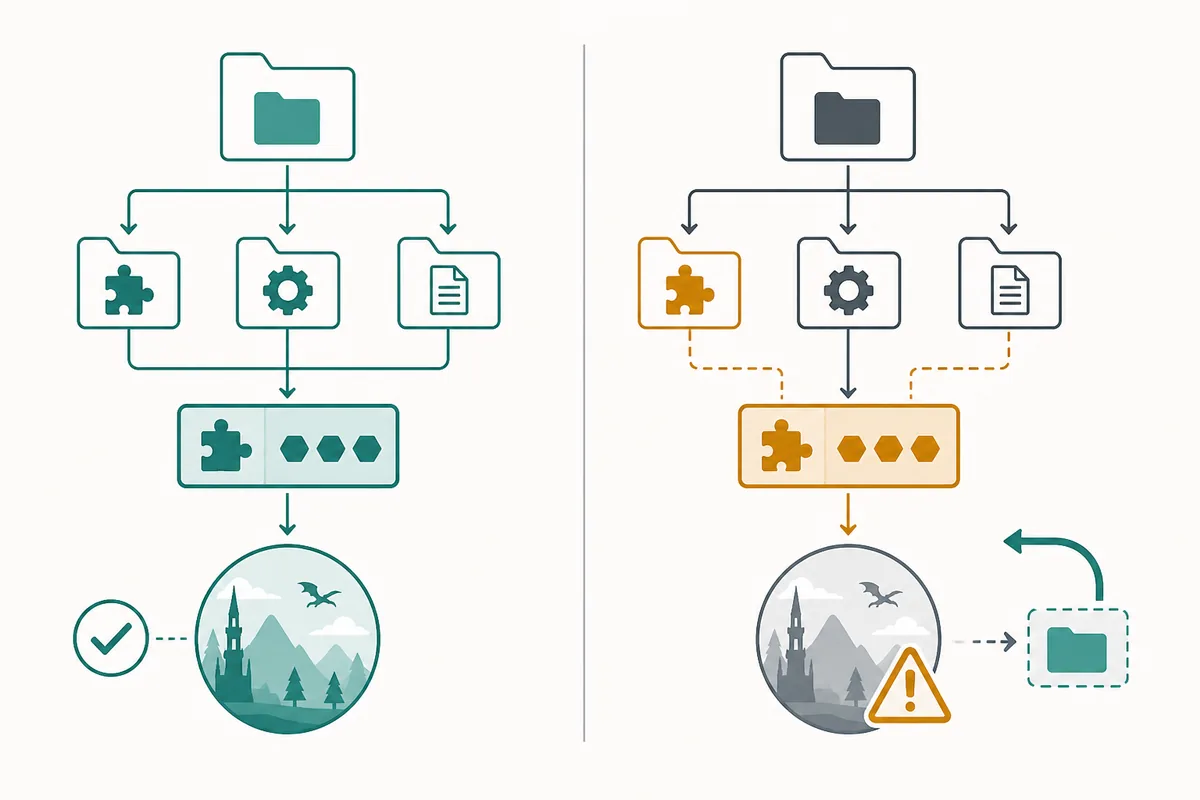
A crash before the menu suggests an early loader problem, a duplicate DLL or a package that no longer matches the game. A world-load crash points more often to content, dependency or save references. If UE4SS appears installed but the mod does not load, verify the folder path and the archive structure before downloading anything again. If a feature disappears after removal, the save may still reference data supplied by the mod.
Troubleshoot in a controlled order: disable third-party packages, confirm the base game or server starts, restore the required loader alone, and add one mod at a time. Compare the release notes and issue tracker when the failure returns. Do not solve a version mismatch with a random replacement DLL; that can hide the original cause and make rollback harder.
- Check for duplicate loaders before changing a working game directory.
- Recheck Win64 versus WinGDK before blaming the mod itself.
- Use a save copy for every repair or removal experiment.
Remove UE4SS and roll back without guessing
To uninstall, disable the mod or Workshop entry first, stop the game or server, and compare the live folder with the original loader archive or your installation record. Remove only files known to belong to that loader and its package. A shared loader may still be required by another mod, so deleting every UE4SS-looking file is not a safe cleanup strategy.
If the game still fails, restore the last known-good folder and save backup rather than stacking another fix on top. Keep the source release page, package versions and test result until the next update has been tested. Verification tools can restore normal game files, but they cannot recreate a damaged world or decide which third-party loader a save expected.
- Disable before deleting, and remove only documented files.
- Restore a backup when a content mod has written data into a save.
- After a major update, recheck the loader release and every mod requirement.
Which Palworld UE4SS path should you use?
Use the platform and side labels as a first decision. The original loader and mod pages remain authoritative for the exact release and folder tree.
| Situation | Start here | Verify first | Avoid |
|---|---|---|---|
| Steam PC | Manual UE4SS loader | Win64 path, loader build and mod dependencies | Steam mods that explicitly require UE4SS |
| Windows Game Pass | PC installation with a different binary path | WinGDK path and source support | Game Pass PC mods with matching instructions |
| Dedicated Windows server | Server-side loader or shared package | Host upload support and client/server requirements | A controlled server maintenance window |
| Pak or LogicMods package | Unreal content format, not automatically UE4SS | The publisher's named Content path | Mods whose source explicitly uses that format |
| Console | No manual UE4SS file workflow in this guide | Platform support and official feature availability | Use only supported in-game or platform features |
Safe Palworld UE4SS installation workflow
Run these checkpoints in order. They keep the main answer crawlable and make Palworld UE4SS troubleshooting reproducible when a loader or mod changes.
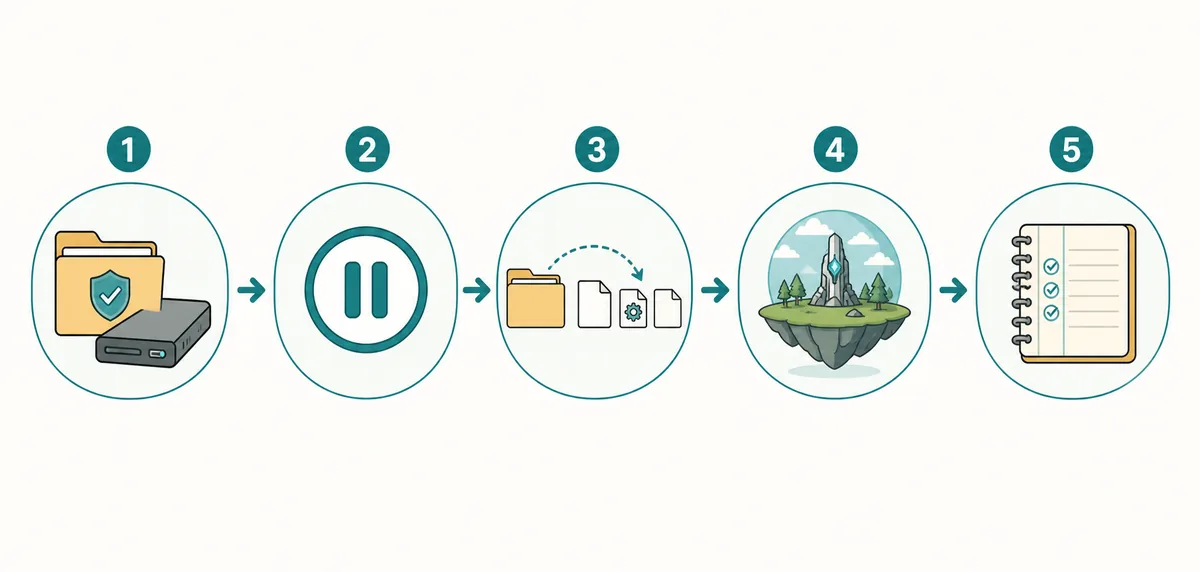
- Record the sourceWrite the release URL, release name, Palworld platform, loader choice, mod version and declared dependencies.
- Back up and stopCopy world and player saves outside the game directory, then stop Palworld or the dedicated server before changing files.
- Use the matching pathFollow the source archive layout: Steam commonly uses Win64, while Windows Game Pass commonly uses WinGDK when supported.
- Test one changeStart with the loader and one mod, use a disposable world, save, exit, reload and check the exact feature you changed.
- Keep the rollback recordRecord the working files and remove the last change first if a crash, missing mod or multiplayer mismatch returns.
Palworld UE4SS FAQ
What is UE4SS in Palworld?
UE4SS is a runtime loader used by some Unreal Engine mods. It is not a universal Palworld Mods folder and it is not required by every Workshop, Pak, LogicMods, PalSchema or standalone release. Follow the individual mod page.
Where do I install UE4SS for Palworld?
For Steam PC, current community instructions commonly use Palworld\Pal\Binaries\Win64. Windows Game Pass uses a different WinGDK layout. Confirm the exact path and archive structure on the current loader and mod source pages before copying files.
Can I use the Steam UE4SS path on Game Pass?
Do not assume so. Game Pass PC uses a different binary layout, commonly Palworld\Content\Pal\Binaries\WinGDK when the source supports it. Treat Steam and Game Pass as separate installation targets.
Why is UE4SS installed but my Palworld mod does not load?
Check the platform path, loader build, mod folder structure and declared dependencies first. Then disable other packages and add the mod alone. A duplicate loader or an outdated dependency can fail before the mod itself is tested.
How do I uninstall UE4SS from Palworld?
Disable the mod, stop the game or server, compare the live files with the original archive or your record, and remove only documented loader files. Keep a save backup because file verification cannot restore world data written by a third-party mod.
Sources and verification notes
This guide uses a source-first workflow. Release pages and community documentation can change, so verify the current requirements on the day you install.
- RE-UE4SS releases — Primary release page for loader builds and release assets; checked August 7, 2026.
- Palworld Modding Docs: installing mods — Community installation context for Workshop and manual mod workflows.
- Palworld Modding Docs: UE4SS server installation — Community server-side loader context; host support still needs separate verification.
- Palworld official Steam page — First-party platform context; it is not a substitute for a mod publisher's loader requirements.